Mailing List
The purpose of this e-mail list is to send out information on upcoming events, sports and music opportunities, co-ops, field trips, used curriculum, and discounts that pertain to homeschooling, home discipleship, and/or families.
This is a moderated site, and, as such, only communications that pertain to their respective topics will be posted on these lists. Your email address will not be sold or used for any purpose other than for the communication that is described below.
If you wish to To join the HSRC e-mail list send an email to the email below from the email account you use.
homeschoolers-join@fofc.org
If you wish to leave a list send an email to the email address below to leave the list from the email account you used to join.
homeschoolers-leave@fofc.org
NOTICE About SPAM and Filtering:
Unfortunately, there is not a simple way to deal with spam and the way that individual email services filter their emails. Some have more strict rules than others which may not allow a message to even reach your inbox or the spam folder. However, the rules change overtime as the battle to filter out spam continues.
Many email services let the user decide if a message is spam. Some times a message is marked as spam, which can happen to new messages you receive the first few times from a new address, you can view your spam folder. And move the message to your inbox and or tag it as not spam.
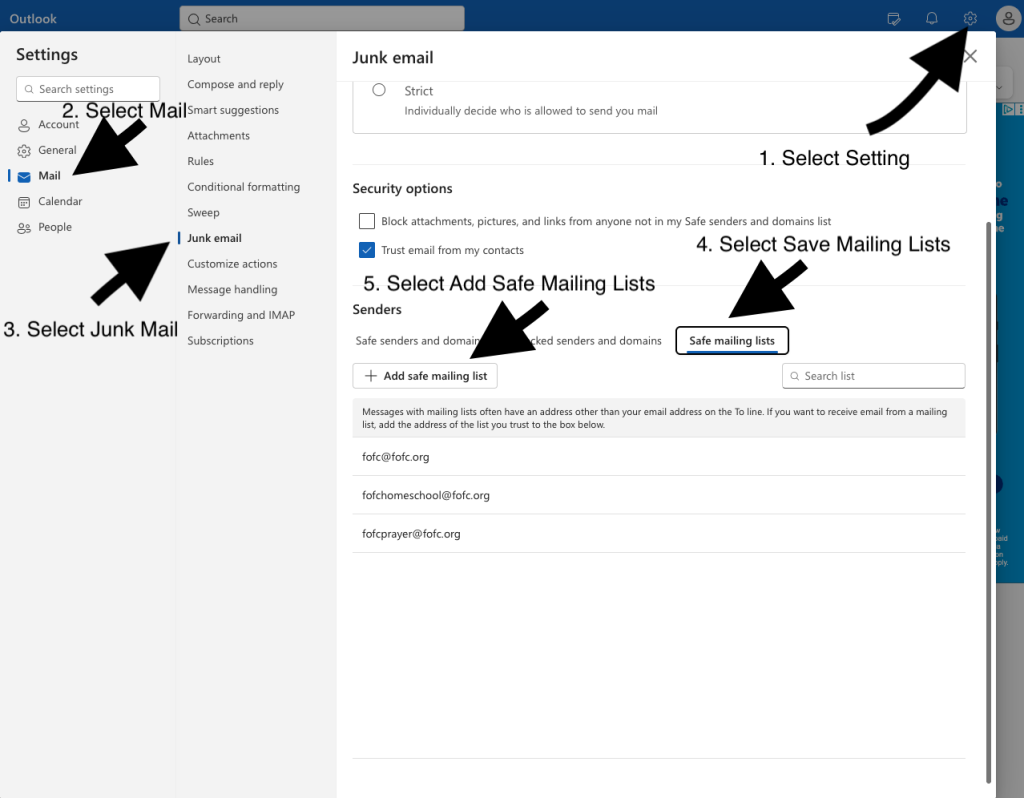
For Microsoft Outlook Users Add our email address to the Safe Mailing list.(2026)
For Yahoo Users (2026):
To ensure Yahoo Mail prioritizes messages from a specific mailing list and keeps them out of your spam folder, you should use a combination of “whitelisting” techniques. Yahoo’s filters are quite strict, so taking all three steps below is the best way to “train” the system.
1. The “Not Spam” Manual Override
If an email from the mailing list is already in your Spam folder, this is the most important first step:
- Open your Spam folder.
- Select the email from the mailing list.
- Click the Not Spam button at the top of the screen.This immediately moves the email to your Inbox and tells Yahoo’s algorithm that you actually want these messages.
2. Add the Sender to Your Contacts
Yahoo is much less likely to block an email if the sender is in your personal address book.
- Open an email from the mailing list.
- Hover your mouse over the sender’s name or email address at the top.
- Click the three dots (…) or the “Add to Contacts” icon that appears.
- Save the contact with the mailing list’s “From” email address.
3. Create a Custom Filter (Most Reliable)
Setting up a filter is the most “bulletproof” way to ensure these emails always land in your Inbox.
- Click the Settings (gear icon) in the top-right corner and select More Settings.
- Click Filters on the left-hand menu.
- Click Add new filters.
- Name the filter (e.g., “Mailing List”).
- Under Set rules, look for the From section. Ensure it says “contains” and type in the email address of the mailing list.
- Under Choose a folder to move to, select Inbox.
- Click Save.
Pro-Tip for 2026: If the mailing list is a “Google Group” or a large automated list, Yahoo sometimes struggles even after you’ve marked it as “Not Spam.” Using the Filter method (Step 3) is your best bet for these specific types of high-volume senders.